

How to Stream on Twitch PC Using OBS Studio. So you want to become a Twitch streamer. Maybe you’ve been watching your favorite creators and thinking, “I could do that.” Or perhaps you’ve got a gaming setup that deserves an audience. Either way, you’re in the right place.
Streaming isn’t as complicated as it looks from the outside. Sure, when you watch someone with a polished overlay, smooth transitions, and crystal-clear audio, it seems like they’ve got some secret formula. The truth? Most successful streamers started exactly where you are now, staring at OBS Studio for the first time and wondering where to even click.
This guide walks you through everything you need to start streaming on Twitch using OBS Studio. Not the sanitized, overly-technical version that assumes you already know what a bitrate is. The real version, where we talk about the mistakes you’ll probably make (because everyone does) and how to fix them before your first viewer notices.
Why OBS Studio Is Your Best Friend
Before we dive into the setup, let’s talk about why OBS Studio has become the streaming software that nearly everyone recommends.
First, it’s completely free. Not “free trial” or “free with watermarks.” Actually free. Streamlabs and other alternatives have their place, but OBS Studio gives you professional-grade tools without asking for your credit card.
Second, it’s powerful without being overwhelming once you understand the basics. You can start simple with just your game and a microphone, then gradually add webcam, alerts, chat boxes, and all the fancy stuff as you grow.
Third, it’s compatible with basically everything. Windows, Mac, Linux. Every capture card on the market. Any microphone or camera you can plug into your computer. OBS doesn’t care what brand loyalty you have—it just works.
What You’ll Need Before You Start
Let’s be realistic about requirements here. You don’t need a $3,000 gaming rig to stream, but you do need hardware that can handle gaming and encoding video simultaneously.
Your PC should have at least a modern quad-core processor (Intel i5 or AMD Ryzen 5 from the last few years), 8GB of RAM (though 16GB makes life easier), and a decent graphics card if you’re gaming. Your internet connection matters more than people realize—you’ll want at least 5 Mbps upload speed, though 10 Mbps or higher gives you breathing room.
You’ll also need a Twitch account (obviously), a microphone that doesn’t sound like you’re broadcasting from inside a tin can, and optionally a webcam if you want viewers to see your reactions. Headphones help prevent your game audio from feeding back into your microphone.
Don’t stress about buying everything at once. Many successful streamers started with their laptop’s built-in mic and no camera. You can upgrade as you go.
Downloading and Installing OBS Studio
Head over to obsproject.com and download the latest version for your operating system. The website automatically detects whether you’re on Windows, Mac, or Linux, so you don’t have to hunt around.
The installation is straightforward—just click through the prompts like any other program. When you first launch OBS, you’ll see an Auto-Configuration Wizard. Should you use it?
Honestly? Yes, especially if this is your first rodeo. The wizard analyzes your system and internet connection, then sets up OBS with settings that should work for your hardware. You can always tweak things later, but it’s a solid starting point that saves you from making rookie mistakes with encoding settings.
Choose “Optimize for streaming” when prompted, select Twitch as your service, and let it run the bandwidth test. This takes a few minutes but prevents the frustration of going live only to discover your stream is a pixelated mess.
Understanding the OBS Interface
When you first look at OBS Studio, you’ll see several panels that might seem confusing. Let’s break down what you’re actually looking at.
The big black rectangle in the center is your canvas—this is what your viewers will see. Everything you add to your stream appears here.
Below that, you’ll find the Scenes box on the lower left. Think of scenes as different layouts for your stream. You might have one scene for gameplay, another for a “starting soon” screen, and maybe one for chatting between games. You switch between these with a single click.
Next to Scenes is the Sources box. This is where the magic happens. Sources are the individual elements that make up your scene—your game capture, webcam, microphone, images, text, and everything else. Each scene can have multiple sources layered on top of each other.
On the right side, you’ve got your Audio Mixer showing levels for all your audio sources, and below that is the Controls panel with buttons to start streaming, start recording, and access settings.
Connecting OBS to Your Twitch Account
Before you can stream, OBS needs permission to broadcast to your Twitch channel. This happens through something called a stream key, which is basically a unique password that connects OBS to your specific Twitch account.
Open OBS Settings (click the Settings button in the Controls panel), then navigate to the Stream section. Under Service, select Twitch from the dropdown menu. Now you have two options: you can manually enter your stream key, or you can click “Connect Account” to log in through your browser.
The “Connect Account” method is easier and more secure. Click it, your browser will open, you’ll log into Twitch and authorize OBS, then you’re done. The connection happens automatically.
If you prefer the manual method, open Twitch in your browser, go to your Creator Dashboard, click on Settings, then Stream. You’ll see your stream key there. Copy it and paste it into OBS. Never share this key with anyone—it’s like giving them the password to your Twitch account.
Setting Up Your First Scene
Time to build something viewers can actually watch. Click the plus icon under Scenes and name your first scene something like “Gameplay” or “Main.”
Now you need to add sources to this scene. Click the plus icon under Sources. You’ll see a long list of options, but we’re focusing on the essentials first.
For capturing your game, you have three main options: Display Capture (captures your entire monitor), Window Capture (captures a specific program window), or Game Capture (specifically designed for games and usually performs best). Most streamers use Game Capture for the best performance.
Select Game Capture, give it a name (like “Game”), and click OK. In the properties window, set Mode to “Capture specific window” and select your game from the dropdown. If your game isn’t listed, launch the game first, then come back to OBS and refresh the window list.
Can’t see anything? Make sure your game is running in full-screen or borderless windowed mode. Some games don’t play nice with window capture when they’re in exclusive full-screen mode. Also, check that “Capture Cursor” is enabled if you want your mouse visible.
Adding Your Audio
Your game might be showing up now, but nobody can hear anything yet. Let’s fix that.
Your microphone should already appear in the Audio Mixer section if it’s plugged in. If not, click the plus icon under Sources, select “Audio Input Capture,” and choose your microphone from the device dropdown.
Watch the audio level meter as you talk. You want it peaking in the yellow range, occasionally touching red but never staying there. If it’s too quiet, you’ll need to boost your microphone volume in Windows sound settings. If it’s too loud and constantly hitting red, lower it.
Desktop audio (your game sounds, music, and system sounds) should also appear automatically in the mixer. If it doesn’t, add an “Audio Output Capture” source and select your speakers or headphones as the device.
Here’s a common mistake: if you’re wearing headphones, you might think your desktop audio isn’t working because you can’t hear it. Check the audio meter—if the bars are moving when game sounds play, it’s working. You just can’t hear it because you’ve got headphones on, preventing feedback.
Adding a Webcam (Optional But Recommended)
Viewers connect with streamers they can see. A webcam isn’t mandatory, but it makes a huge difference in how personable your stream feels.
Click the plus icon under Sources and select “Video Capture Device.” Name it “Webcam” and choose your camera from the device dropdown. Click OK, and your beautiful face should appear on the canvas.
Now it’s probably covering your game, which isn’t what you want. Click on your webcam in the canvas and drag it to a corner. You can also grab the red handles on the edges to resize it. Hold Shift while resizing to maintain the aspect ratio and avoid looking weirdly stretched.
Right-click on your webcam source and explore the Filters option. This is where you can add things like color correction to improve your lighting, chroma key to remove a green screen background, or noise suppression to clean up your video quality.
Configuring Your Stream Settings
Click on Settings in the Controls panel, then navigate to Output. This is where you tell OBS how to encode your video, and getting this right makes the difference between a smooth, professional stream and an unwatchable slideshow.
Under Streaming, you’ll see several important options. Your Encoder should usually be set to either x264 (uses your CPU) or NVIDIA NVENC/AMD VCE (uses your graphics card). If you have a modern NVIDIA or AMD graphics card, use the hardware encoder—it gives excellent quality while barely impacting your gaming performance.
Bitrate determines your video quality. Higher bitrate means better quality, but requires faster internet. For 1080p streaming at 60fps, you want 6000 Kbps. For 1080p at 30fps, 4500 Kbps works well. For 720p at 60fps, try 4500 Kbps. For 720p at 30fps, 3000 Kbps is sufficient. Remember your internet upload speed test from earlier? Your bitrate should be about 70-80% of your upload speed to leave room for stability.
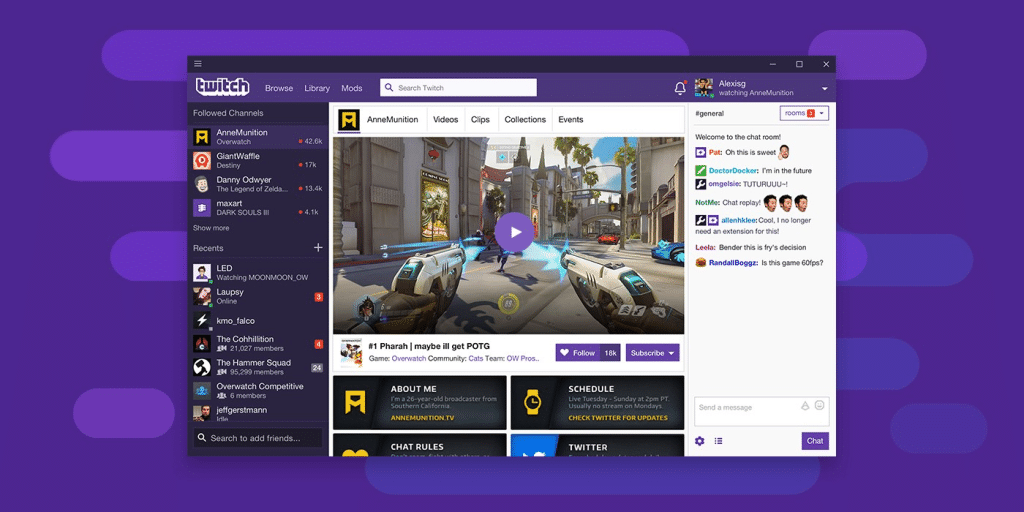
Video Settings That Actually Matter
Navigate to the Video settings. Here you’ll set your base canvas resolution (usually your monitor’s resolution) and your output resolution (what viewers see).
Streaming at your monitor’s full resolution sounds great until you realize it requires massive bitrate and processing power. Most streamers output at 1920×1080 or 1280×720 even if they’re playing on a 1440p or 4K monitor. Twitch compresses your stream anyway, so you’re not losing much by downscaling.
Your FPS (frames per second) is the next choice. You can stream at 30 or 60 fps. Here’s the truth: 60fps looks smoother and more professional, especially for fast-paced games. But it requires significantly more bitrate and processing power. If you’re starting and your hardware is modest, 30fps is perfectly acceptable. You can always upgrade later.
Common FPS values are either 30 or 60. Don’t use anything weird like 45 or 50—stick to the standards.
Advanced Audio Settings Worth Knowing
Back in Settings, click on Audio. You’ll see several audio device slots. Most people only need Desktop Audio and Mic/Auxiliary Audio configured.
Sample rate should be 48kHz for streaming (this is standard for broadcasting). Leave it alone unless you have a specific reason to change it.
Now here’s something most beginners miss: audio filters can transform your microphone from amateur to professional. Right-click on your microphone in the Audio Mixer, select Filters, then add these:
Noise Suppression removes background hum and computer fan noise. The default settings work for most people.
Noise Gate silences your microphone when you’re not talking, preventing breathing sounds and keyboard clicks from being broadcast. Set the Close Threshold to where your mic stays silent when you’re not talking (usually around -40dB to -30dB) and the Open Threshold slightly higher (around -35dB to -25dB).
Compressor evens out your volume so whispers and shouts don’t sound dramatically different. Set Ratio to 3:1 or 4:1, Threshold to -18dB, Attack to 6ms, and Release to 60ms. This takes some experimentation, but these numbers are a solid starting point.
Testing Before You Go Live
Never, and I mean never, click “Start Streaming” without testing first. You’ll thank me later.
Instead, click “Start Recording” and talk for a few minutes while playing your game. Do everything you’d do on stream—react to things, explain what’s happening, move around so your webcam captures different positions.
When you’re done, stop the recording and find the file (OBS saves recordings to your Videos folder by default). Watch it back. How does the quality look? Is your microphone too quiet, too loud, or just right? Is there a weird echo? Does your game look smooth or choppy?
This is your chance to catch problems without an audience watching. Adjust settings, record again, and repeat until you’re happy with the results.
Your First Stream: What to Actually Expect
When you’re ready for the real thing, take a deep breath. Your first stream will not be perfect, and that’s completely normal.
Click “Start Streaming” in OBS. You’ll see the button change to “Stop Streaming” and a timer start counting. You’re live.
Now what? Open Twitch in your browser and navigate to your own channel. You should see yourself streaming there, though there’s usually a 5-10 second delay between what you do and what appears on Twitch.
Talk. This feels awkward at first, especially if nobody’s watching. Talk anyway. Explain what you’re doing in the game, share your thoughts, and tell stories about your day. Viewers who stumble across your stream are more likely to stick around if you’re actively engaging, even if you’re talking to yourself.
Check your chat regularly. When someone does show up and says hello, acknowledge them immediately. This person took time to click on your stream and type something—make them feel welcome.
Common Problems and Quick Fixes
Your stream is lagging or dropping frames? Your bitrate is probably too high for your internet connection. Lower it by 500-1000 Kbps and test again.
Is your game running at 10fps while streaming? Your computer is struggling to encode the video. Switch from the x264 encoder to NVENC if you have an NVIDIA GPU, or lower your output resolution from 1080p to 720p.
Your audio and video are out of sync? Go to Settings > Advanced and add Sync Offset to your audio source. Start with 100ms and adjust until everything lines up.
Your stream looks pixelated during fast movement? This is a bitrate struggling to keep up with motion. Either increase your bitrate (if your internet allows) or reduce your output resolution.
Can nobody hear your game audio? Check the Audio Mixer—your Desktop Audio source might be muted (the speaker icon has an X through it). Click it to unmute.
Your microphone sounds like a tin can? You’re probably too close to it, or your gain is set too high, causing distortion. Move back slightly and lower your microphone volume in Windows sound settings.
Making Your Stream Look Professional
Once you’ve got the basics working, you can start adding polish. This is where streaming becomes fun.
Overlays are graphics that frame your stream—borders, nameplates, social media handles, and decorative elements. You can find free overlays on sites like Nerd or Die, OWN3D, and Streamlabs, or commission custom ones from designers on Fiverr or Twitter.
To add an overlay, download it (usually a PNG file), then add it as an Image source in OBS. Position it where you want and make sure it’s at the top of your sources list so it appears over everything else.
Alerts for new followers, subscribers, and donations require third-party services like StreamElements or Streamlabs. These integrate with your Twitch account and create animated alerts that pop up on screen. Set them up through their websites, then add them to OBS as Browser sources using the URL they provide.
Chat boxes let you display your Twitch chat on stream so viewers can see the conversation even in clips or highlights. Add these as Browser sources too—most alert services provide chat box widgets.
The Technical Stuff Nobody Explains Well
Let’s talk about rate control, because this confuses everyone at first. In your Output settings, you might see options like CBR, VBR, and CQP.
CBR (Constant Bitrate) maintains the same bitrate throughout your entire stream. This is what you want for Twitch streaming because it’s predictable and stable. Your stream will use 6000 Kbps (or whatever you set) whether you’re looking at a static menu screen or in the middle of an explosion-filled firefight.
VBR (Variable Bitrate) adjusts the bitrate based on complexity. More complex scenes get a higher bitrate, simple scenes get a lower. This is great for recording, but not ideal for live streaming, where consistency matters more.
Keyframe interval should be set to 2 seconds. Twitch requires this. In OBS, this might be shown as “keyframe interval” or “GOP size.” If it’s GOP size, multiply your framerate by 2 (so 60fps × 2 = 120).
Monitoring Your Stream Health
OBS shows you important stats at the bottom of the window. Learn to read them because they’ll alert you to problems before viewers start complaining.
CPU usage tells you how hard your processor is working. Above 85-90% is risky territory where you might start dropping frames. If you’re constantly this high, you need to lower your encoding preset or resolution.
Dropped frames are the critical number. This happens when your internet can’t keep up with the bitrate you’re trying to send. A few dropped frames here and there are normal. If you’re dropping hundreds or if the percentage goes above 1-2%, you need to lower your bitrate.
Rendering lag means your computer can’t render your scenes fast enough, usually because you’ve got too many sources or resource-heavy filters. Simplify your scenes or upgrade your hardware.
Growing Beyond the Basics
After you’re comfortable with basic streaming, here are some next-level improvements to consider.
Multiple scenes let you switch between different layouts. Create a “Starting Soon” scene with a countdown timer, a “Be Right Back” scene for bathroom breaks, and an “Ending” scene to wrap up your stream. Switch between them using hotkeys for seamless transitions.
Scene transitions make switching between scenes look professional instead of jarring. Right-click on a scene, select Transitions, and pick something like Fade or Swipe. Keep transitions under 500ms—anything longer feels sluggish.
Audio ducking automatically lowers your game volume when you talk, making sure viewers can hear you clearly. This requires installing plugins like win-audio-ducking, but it’s worth the effort for the professional polish it adds.
What Success Actually Looks Like
Your first stream probably won’t have more than one or two viewers, and they might just be your friends. This is normal. Every successful streamer started with zero viewers.
Consistency matters more than production value. Streaming every Tuesday and Thursday at 7 pm will grow your audience faster than streaming randomly whenever you feel like it. People need to know when to find you.
Engagement matters more than viewer count. Ten engaged chatters who show up regularly are infinitely more valuable than 100 silent lurkers. Build relationships with the people who talk to you.
Quality improves with time. Your tenth stream will be better than your first. Your hundredth stream will be better than your tenth. Don’t wait until everything’s perfect to start—you learn by doing.
The Reality Check You Need
Streaming is harder than it looks. Not technically harder—you’ve just learned all the technical stuff. Harder in the sense that talking continuously for 3-4 hours while staying entertaining is genuinely exhausting.
You’ll stream for weeks with single-digit viewers. This is the reality for everyone starting. The streamers with thousands of viewers? They put in months or years of nearly empty streams before they grew.
Your equipment will always feel inadequate. There’s always a better microphone, a clearer webcam, a more powerful computer. Don’t fall into the trap of thinking you need professional gear before you can succeed. Work with what you have and upgrade gradually.
Technical problems will happen during live streams. Your internet will hiccup at the worst possible moment. OBS will crash during a crucial moment in your game. Accept this now, and you’ll handle it with grace instead of panic when it happens.
Final Thoughts Before You Click “Go Live”
Streaming is one of those things that seems impossibly complex until suddenly it clicks and becomes second nature. You’re at the beginning of that journey right now, where everything feels overwhelming and like you’re forgetting something important.
You probably are forgetting something. Every streamer forgets to unmute their mic at least once, accidentally streams a menu screen instead of their game, or realizes after two hours that their webcam was off. These moments are embarrassing, then they’re funny, and eventually they’re stories you tell to help other new streamers feel less alone.
The best time to start streaming was months ago, when you first thought about it. The second-best time is today, right now, with whatever equipment and knowledge you currently have.
OBS Studio is sitting there waiting for you to click “Start Streaming.” Your Twitch channel is ready. You know enough now to go live and figure out the rest as you go.
So stop reading guides (including this one), open OBS, and stream something. Even if it’s just for 30 minutes. Even if nobody watches. Even if you think you’re not ready.
You’re as ready as you’ll ever be without actually doing it.
Good luck out there. See you on Twitch.
SUGGESTED POST >> 12 Trending Faceless YouTube Channel Ideas that Blow Up Fast
Discover more from SteezeTech
Subscribe to get the latest posts sent to your email.
