


How to Sell Digital Planners on Amazon
Digital planners have become a serious business. And Amazon, despite not being the first platform most creators think of, is one of the most powerful places to sell them. The traffic is already there. The trust is built in. You just need to know how to set things up correctly.
This isn’t a guide for people looking to get rich overnight. It’s for those who want to build something real — a product that sells consistently, gets reviewed well, and grows over time.
Let’s get into it.
First — What Exactly Is a Digital Planner?
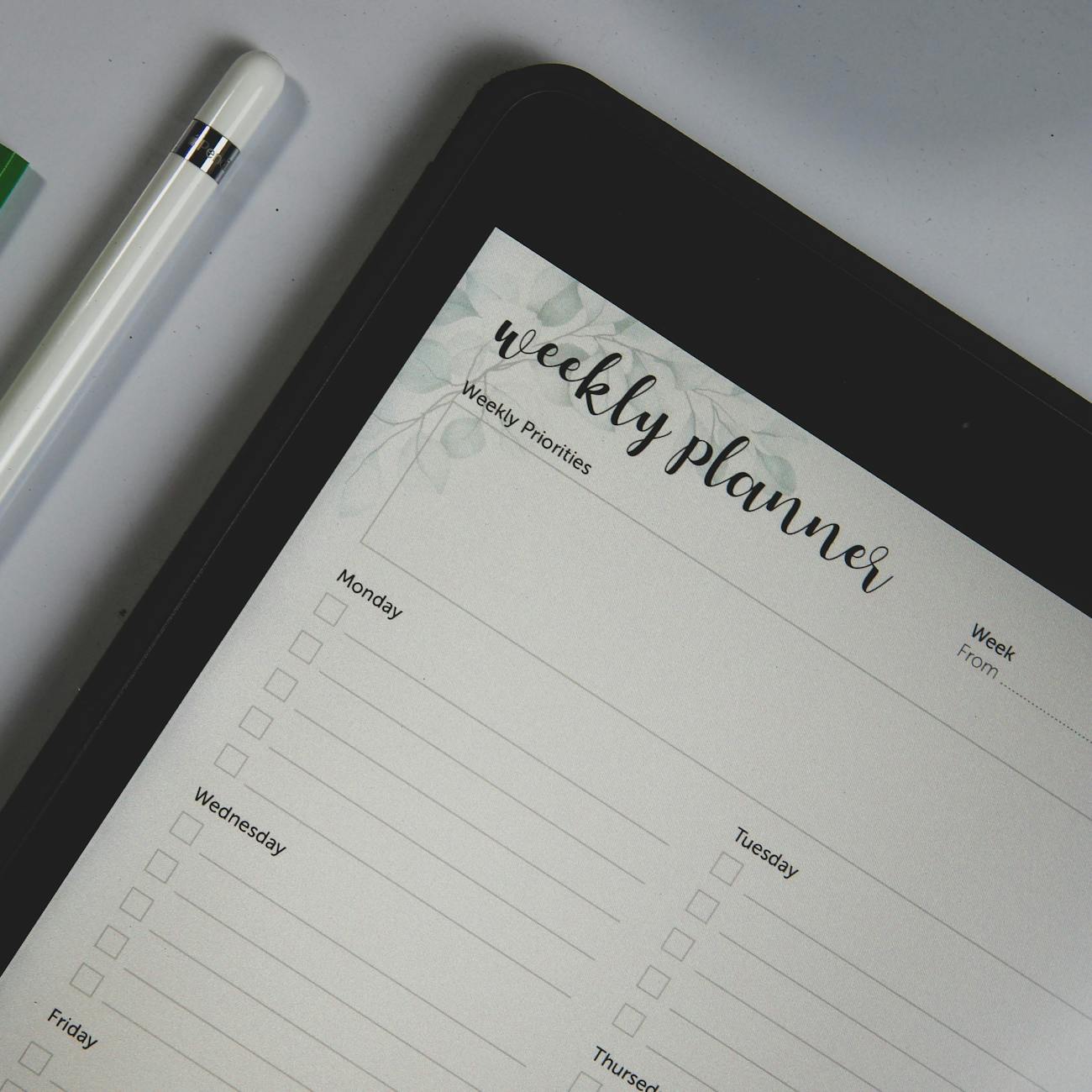
A digital planner is an interactive PDF or file (usually in .PDF or .GoodNotes format) designed for use on tablets, iPads, and apps like GoodNotes, Notability, or Xodo. Unlike a printed planner, buyers download it and use it digitally, writing with a stylus or typing directly into the file.
Popular categories include daily planners, meal planners, fitness trackers, budget planners, wedding planners, academic planners, and business productivity tools.
The market is growing fast. More people are going paperless, and tablet usage has exploded since 2020. Demand for digital organization tools isn’t slowing down.
Can You Actually Sell Digital Downloads on Amazon?
Yes — but with some nuance. Amazon doesn’t have a dedicated “digital downloads” marketplace the way Etsy or Gumroad does. So selling digital planners requires a specific approach.
The most practical method is selling via Amazon KDP (Kindle Direct Publishing). While KDP is primarily for ebooks and printed books, you can publish a digital planner as a low-content or no-content book — effectively turning it into a downloadable or print-on-demand product.
Another route is using Merch by Amazon or Amazon’s own digital software and app store, though those are more niche. KDP is where most digital planner sellers focus their energy.
Side note: Some sellers also list their digital products as physical items (a USB drive or printed version) through Amazon’s standard marketplace. It’s a workaround that some find useful, though it adds fulfillment complexity.
Setting Up Your Amazon KDP Account
If you don’t have one already, go to kdp.amazon.com and create a free account. You’ll need a regular Amazon account to start.
The setup process asks for:
- Your name (or business name)
- Bank account information for royalty payments
- Tax information (W-9 for US residents, W-8BEN for international)
- A valid address
It takes maybe 15 minutes. Once approved, you can start uploading products.
Creating a Digital Planner That Sells
Before you list anything, you need a product worth buying. A lot of sellers skip the design phase and wonder why nothing moves.
Design Tools to Use
Canva (Pro version) is the most popular option for beginners. It’s intuitive, has tons of templates, and exports clean PDFs. For more customized designs, Adobe InDesign or Affinity Publisher are stronger choices.
GoodNotes-compatible planners need hyperlinked tabs and sections. This is done by creating internal links within your PDF. Canva doesn’t do this natively — you’ll need a tool like Adobe Acrobat or PDF Candy to add hyperlinking after export.
What Makes a Digital Planner Actually Good
Functionality comes first. Buyers want to use the planner, not just look at it. Make sure every tab works, every link goes somewhere useful, and the layout is intuitive.
Visual design matters too, but don’t overdo it. Minimalist planners with clean fonts and neutral colors consistently outsell flashy, over-designed ones. People are going to stare at this thing for hours — they want something calm.
Include a variety of pages. A strong planner usually has a yearly overview, monthly spreads, weekly layouts, and daily pages — plus maybe a habit tracker, notes section, and goal-setting page.
File compatibility is essential. Your planner should work in GoodNotes, Notability, and Xodo at a minimum. Test it yourself on multiple apps before you list it.
How to List Your Digital Planner on Amazon KDP
Once your planner file is ready, here’s how the listing process works on KDP.
Step 1: Choose Your Format
On KDP, you can list your planner as an ebook (Kindle format) or as a paperback/hardcover print-on-demand book. For digital planners that buyers download and use on tablets, the Kindle ebook format is the most straightforward.
However — and this is key — Kindle ebooks render differently on different devices. Interactive PDFs don’t always translate well.MOBI or.EPUB format. Many sellers choose to list their planners as paperbacks, too, offering both a printed version and a digital version under the same title.
Step 2: Write Your Title and Subtitle
Your title should be clear and keyword-rich. Don’t be clever. Be direct.
Something like “2026 Daily Digital Planner for iPad — GoodNotes Compatible, Dated Weekly and Monthly Layout” tells buyers exactly what they’re getting. It includes search terms people actually use.
Avoid stuffing the title with too many keywords — Amazon’s algorithm doesn’t reward that, and it looks unprofessional to real buyers scanning through listings.
Step 3: Write a Description That Converts
The description is your sales page. Lead with the problem your planner solves. Who is this for? What will their life look like after using it?
Then list the features. Be specific — “87 pages,” “hyperlinked tabs for instant navigation,” “compatible with GoodNotes 5 and Notability.” Specificity builds trust.
End with a clear call to action. Something as simple as “Tap the button above to download instantly” works fine.
Step 4: Enter Your Keywords
KDP gives you 7 keyword fields. Use all of them. Think about what your buyer types into the search bar — not what you’d call your product internally.
Good keyword examples: “digital planner iPad 2026”, “GoodNotes planner dated”, “digital weekly planner download”, “interactive PDF planner”, “productivity planner digital”.
You can use free tools like Publisher Rocket, Helium 10’s KDP extension, or even Amazon’s own autocomplete feature to find high-traffic keywords.
Step 5: Categories
KDP lets you pick 2 categories. Choose ones that are relevant but not too competitive. “Calendars & Planners” is obvious, but sometimes a secondary category like “Time Management” or “Personal Productivity” can help you rank faster with less competition.
Step 6: Cover Design
Your cover is the first thing buyers see. It has to look professional. Clean fonts, good color contrast, and a clear product name. You don’t need to hire a designer — Canva has solid book cover templates — but don’t rush this step either.
KDP has specific cover dimension requirements based on your page count and format. Their cover calculator tool will give you exact specs.
Pricing Your Digital Planner
Pricing is where a lot of new sellers make mistakes.
On KDP, ebook royalties are 35% for books priced between $0.99 and $2.98, and 70% for books priced between $2.99 and $9.99. So a $4.99 planner earns you roughly $3.49 per sale.
For digital planners, $4.99 to $12.99 is the most common and effective price range. Premium planners with extensive features and beautiful design can go higher — up to $19.99 or even $24.99 — but you’ll need reviews and strong branding to justify that.
Don’t underprice to compete. A $0.99 planner actually signals low quality to many buyers. It’s counterintuitive, but $7.99 often converts better than $1.99 in this category.
If you’re just starting, pricing at $4.99 or $5.99 is a reasonable place to begin while you accumulate reviews.
Getting Your First Reviews
This is the hardest part for new sellers. Amazon’s algorithm weights reviews heavily, and a listing with zero reviews is basically invisible.
A few legitimate ways to get early reviews:
- Share your listing with your existing audience — even a small email list or social media following can generate the first handful of reviews.
- Use KDP Select’s free promotion days to offer your planner at no cost for a limited time. Free downloads often lead to reviews.
- Ask buyers (through a note inside your planner file itself) to leave a review if they found it helpful. This is completely within Amazon’s TOS.
- Join seller communities on Reddit (r/kdp, r/Etsy) or Facebook groups where sellers sometimes exchange honest reviews.
Never pay for fake reviews. Amazon bans accounts for this, and it’s not worth it.
Amazon Ads for Digital Planners
Organic sales are possible, but Amazon Ads can accelerate your results significantly.
Sponsored Products ads are the most useful for KDP sellers. You set a daily budget, pick your keywords (or let Amazon auto-target), and your listing appears at the top of search results.
Start small. A $5/day budget is enough to gather data. Run auto-targeting campaigns first to see which keywords are converting, then switch to manual targeting and double down on the winners.
ACoS (Advertising Cost of Sale) is the metric to watch. Aim for below 40% when starting. As your organic rank improves and reviews accumulate, you can reduce ad spend while maintaining sales volume.
Seasonal targeting is powerful, too. Planners sell heavily in October through January (new year, back to school, holiday gifting). Increase your budget during those windows.
Building a Product Line, Not Just One Planner
The sellers doing well on Amazon KDP aren’t relying on a single product. They’ve built a catalog.
Once your first planner is live, think about variations and complementary products:
- A dated version and an undated version of the same planner
- Planner bundles (daily + weekly + monthly in one file)
- Niche-specific planners (teacher planner, ADHD planner, self-care planner)
- Different color schemes or aesthetic styles (minimalist, floral, dark mode)
- Companion notebooks or journals that pair with your planner
Each new product increases your chances of being discovered. And buyers who like one of your planners will often check your other listings.
Multi-Platform Strategy
Amazon is a great starting point, but shouldn’t be your only channel. Digital planner sellers who build real income usually sell across multiple platforms.
Etsy is arguably even better suited for digital planners than Amazon, given its creative marketplace culture and buyer intent. Listing on both is common practice.
Your own website (via Shopify, Squarespace, or Payhip) gives you 100% of the revenue and control over customer relationships. It takes more effort to drive traffic, but long-term, it’s more profitable.
Pinterest is an underrated traffic driver for digital planner sellers. Visual content, organized by boards, ranks in Google search. A consistent Pinterest presence can send steady organic traffic to your listings.
TikTok and Instagram Reels have helped numerous planner creators build audiences fast. Short videos showing the planner in use — with a stylus on an iPad — perform extremely well. It’s not mandatory, but if you enjoy content creation, this can accelerate everything.
Common Mistakes to Avoid
A few things that trip up new sellers more often than they should:
Skipping keyword research. Guessing at keywords instead of using data. Even a free tool like Google Trends or Amazon’s search bar autocomplete is better than nothing.
Ignoring the cover. A great planner with a bad cover won’t sell. Period. Buyers make snap judgments. Your cover has to be professional.
Only uploading one product and waiting. One listing rarely generates sustainable income on its own. Build a catalog consistently.
Not testing the planner before publishing. Broken links, blurry pages, formatting that falls apart on tablets — these lead to bad reviews that are hard to recover from.
Abandoning listings too early. KDP products can take 3-6 months to gain traction organically. Running an ad for two weeks and giving up isn’t a real test.
How Much Money Can You Actually Make?
Realistic expectations matter here.
A single mid-quality digital planner, properly listed and marketed, might generate $100–$500/month after a few months of optimization. A catalog of 10–20 planners, across multiple platforms, can reach $1,000–$5,000/month or more.
Top-tier KDP sellers with large catalogs, strong brand recognition, and multi-platform distribution do clear $10,000+/month. But that’s not year one for most people.
The income is passive in the sense that you don’t need to fulfill orders manually — but it’s not truly hands-off. You’ll spend time updating listings, running ads, creating new products, and responding to customer questions.
Treat it like a business, and it behaves like one. Treat it like a get-rich-quick scheme, and it’ll disappoint you.
Frequently Asked Questions
Can I sell digital planners on Amazon without a KDP account?
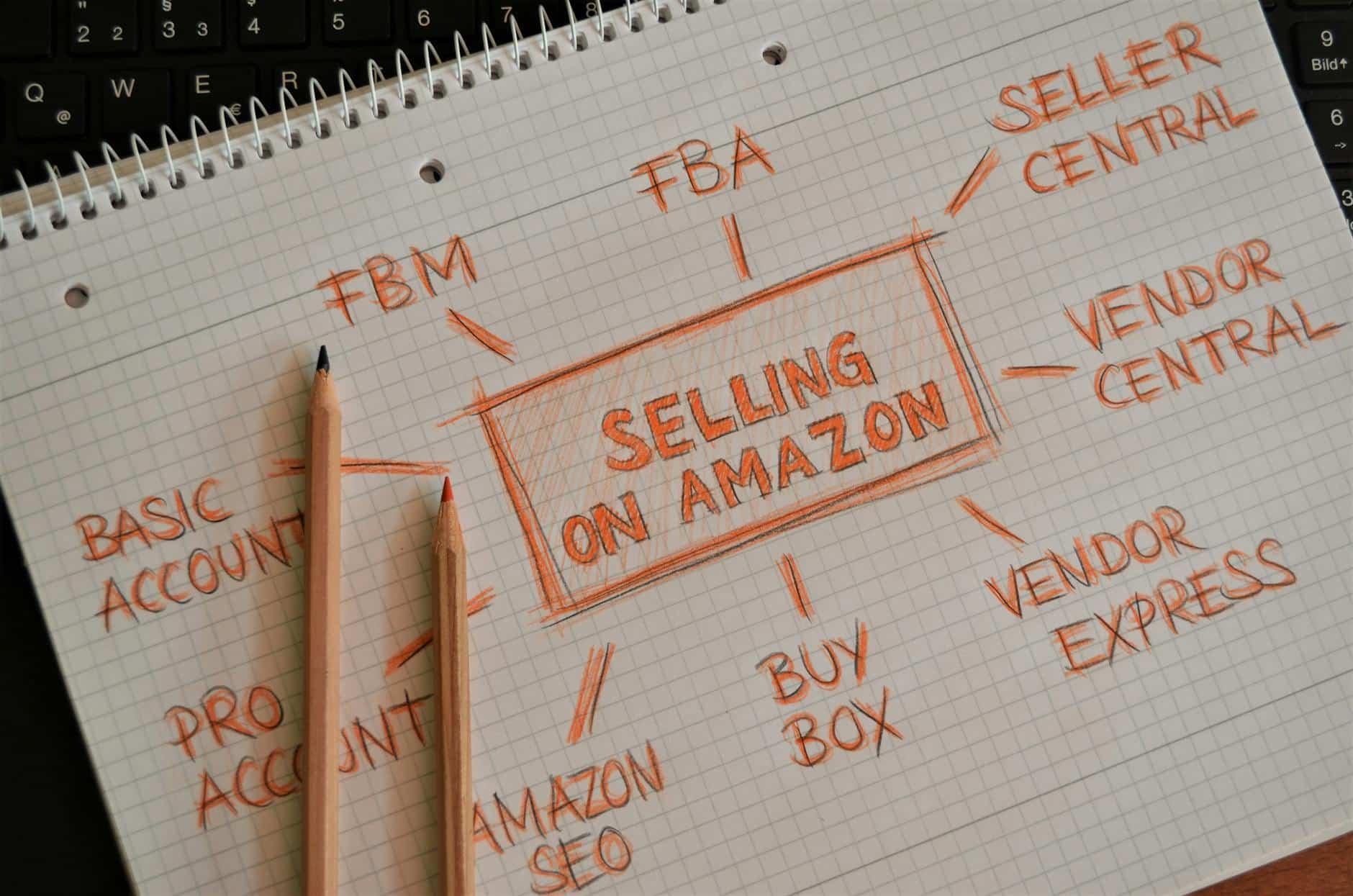
For most digital planner sellers, KDP is the primary route on Amazon. Without it, you’d need to sell a physical product (like a printed version or a USB drive) through a standard Amazon seller account, which involves different setup requirements and fulfillment logistics. KDP is the simpler, more accessible path.
Do I need design experience to create a digital planner?
Not necessarily. Canva Pro has templates specifically for digital planners, and many successful sellers started with zero design background. That said, spending time learning basic design principles — layout, typography, white space — will noticeably improve your products and conversions.
Is Amazon KDP free to use?
Yes. Creating a KDP account and publishing products is free. Amazon takes a royalty cut from each sale (either 35% or 70%, depending on your pricing tier). There are no upfront publishing fees.
How long does it take for a KDP listing to go live?
Amazon typically reviews and approves new KDP listings within 24 to 72 hours. Updates to existing listings are usually processed faster, often within a few hours.
Can I sell the same planner on Etsy and Amazon at the same time?
Yes, unless you’ve enrolled your title in KDP Select, which requires exclusivity on the Kindle platform. KDP Select offers promotional benefits (like free book days and Kindle Unlimited) but restricts you from distributing the ebook elsewhere. If exclusivity isn’t in KDP Select, you’re free to sell on Etsy, your own website, and other platforms simultaneously.
What file format should my digital planner be in?
PDF is the standard and most compatible format for digital planners. It works across GoodNotes, Notability, Xodo, and most other annotation apps. Some sellers also offer a GoodNotes-native file (.goodnotes) as a bonus, but PDF should always be your primary deliverable.
How do I handle customer support for a digital product on Amazon?
Amazon handles most buyer communications through its messaging system. For digital planners, the most common support issues are download problems, formatting questions, or compatibility concerns. Including a clear FAQ or instruction page inside your planner file itself can reduce support requests significantly. Respond to any messages within 24 hours — Amazon monitors seller response times.
Should I use KDP Select or go wide from the start?
KDP Select can be useful early on because of the free promotion tools it offers, which can help jumpstart reviews. But if you plan to sell on multiple platforms — which is generally the smarter long-term move — going wide from the beginning makes more sense. It depends on your overall strategy.
How to Sell Digital Planners on Amazon: Final Thoughts
Selling digital planners on Amazon is genuinely achievable. The barrier to entry is low, the overhead is minimal, and the demand is real. But success comes from treating it seriously — investing in good design, doing the keyword research, building out a catalog, and sticking with it long enough to see results.
You don’t need a massive audience or a big startup budget. You need a good product, a well-optimized listing, and patience.
Start with one planner. Do it properly. Then build from there.
SEE RELATED POST >> Boost Millennial Digital Planner Side Hustle Now | $5k/Wk
Discover more from SteezeTech
Subscribe to get the latest posts sent to your email.
